After transmitting your corrected 1099s to the IRS, you can print and download your forms from the 'Print Forms' menu. The recipient, payer, state, and summary copies of the form will be available.
NOTE: if you want to download the copies before transmitting them to the IRS, you can download draft copies which are for review purposes only, check out how to download draft copies.
Download All Form Types for All Individuals
- Sign in to your Tax File App account.
- From the Dashboard, navigate to the 'Print Forms' menu.
- Select the payer whose forms you want to print, then click the corresponding button to download the respective copy type – Payer, State, and Recipient.
- Generating the forms takes few minutes and the generated files will be for all forms types (like 1099 NEC, W2) for that entity
Download Specific Form Type for All Individuals
- From the Dashboard, navigate to the 'Print Forms' menu.
- Click on 'View Forms' for an entity.
- From the new window select the Forms Type you want to download
- Then select one of the three 'Bulk Print' buttons for recipient, payer, or state copies.
Download Single Form for One Individual
- From the Dashboard, navigate to the 'Print Forms' menu.
- Click on 'View Forms' for an entity.
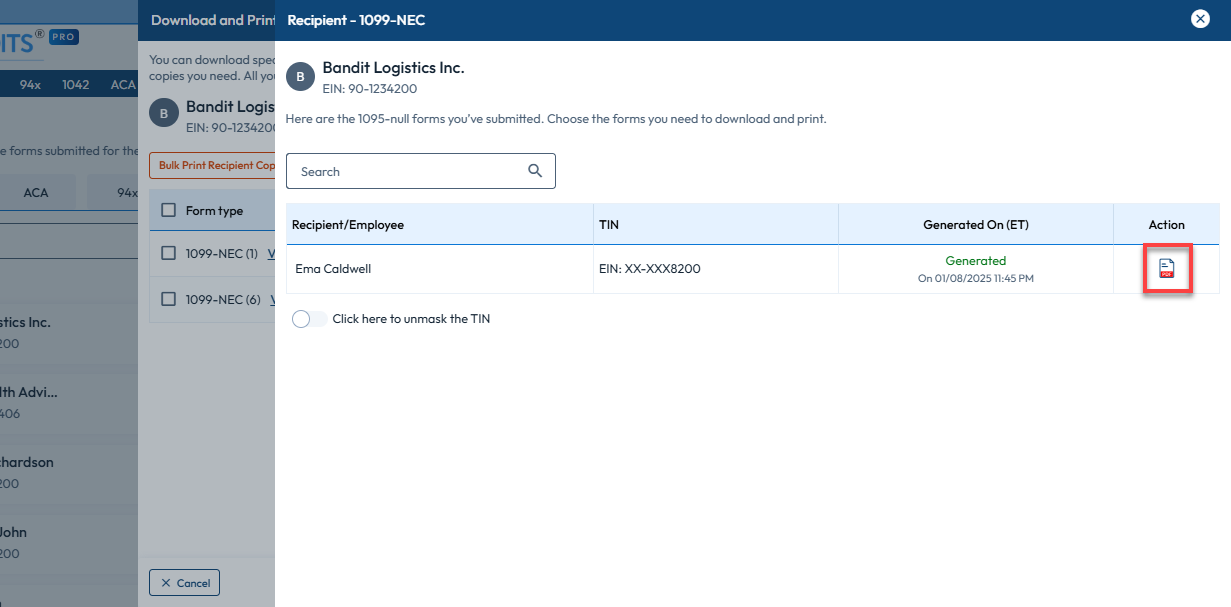
- To download copies for specific recipients, click 'View Forms' and download the necessary copies.

Download 1096 Transmittal & W3 Summary Forms
- From the Dashboard, navigate to the 'Print Forms' menu.
- The list of payers will be displayed. Under the ‘Summary Form’ column, select ‘1096/W-3’ for the payer you want to download.
- A pop-up will appear. Under ‘Action,’ click the download symbol next to the form to download the summary form.
Download State Reconciliation Form
- On the home screen, click Print Forms.
- Click 'Print Forms' next to the payer for whom you want to download the state reconciliation forms.
- Click 'State Recon Forms' to view and download the forms.
- Click the download icon under the 'Action' column to download copies of the state reconciliation form.
Pre-Printed & Blank Forms Settings
If you want to change the print settings for the form copies, you can adjust them in the 'Advanced Print Settings' option to choose the format and layout for each copy type.
You can access it from the Dashboard, navigate to the 'Print Forms' menu., then click on 'View Forms' for an entity.
Available Formats:
- Individual: Each form is generated as a separate PDF.
- Consolidated: Multiple forms are combined into a single PDF, with a maximum of 250 pages per file. If the total forms exceed 250 pages, additional PDFs will be generated.
- Perforated: Pre-printed forms with perforations for easy separation of individual copies.
Available Layouts:
- 1 UP Copy - One copy per page. Copies B and 2 will be available separately.
- 2 UP Copy - Two copies per page. Copies B and 2 will be available on the same page.
- 4 UP Copy - Four copies per page. Copies B, C, and 2 (x 2) will be available on the same page.
Note: For printing and mailing purposes, you must download the copies in print format, 1 copy per page (1 UP).
All your print requests will be available under 'Download History', where you can download and print them.