If you are only submitting a few forms, the manual method is the better option. You can complete the forms one at a time.
Follow the steps below to file W-2 forms manually:
- Sign in to your TaxFIleApp account.
- From the Dashboard, Click on Start New >> Form >> W-2.
- Select the tax year for which you need to file the form.
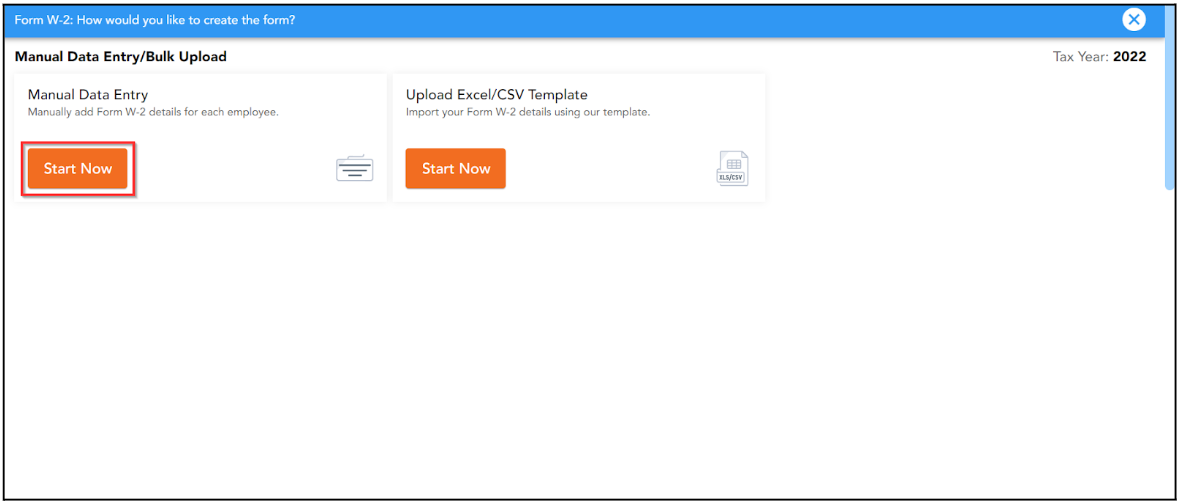
- To manually enter the data for each recipient, click Start Now under Manual Data Entry.
Add Employer Details:
If you’ve filed for this employer before, click the Select/Add Business button to add their details from the Address Book. If this is your first time filing for them, enter their employer details.
Add Employee Details:
If you’ve filed a form for this employee before, use the search bar to find their details in the Address Book. If they are a new employee, enter their details manually, including the wage and tax amounts for the State and Locality, then proceed by clicking Save and Continue.

- On the Review and Select Services page, you can opt for other services, such as Online Access and postal mailing. Here, under the Action column, you can view, download the draft copy, and edit or delete In-progress forms.
- If state filing is necessary for the chosen state, TaxFileApp will e-file the return in the State Filing Info tab after hitting the Continue button.
- On the Form Summary page, review the total amounts reported on the previous page for the forms you are about to file and click Continue.
- Complete your order and pay the filing fee using either a credit card or prepaid credits.