Understanding Online Access for W2 & 1099 Distribution
Online Access through TaxFile.app is a streamlined recipient copy distribution service. It empowers employers and payers to instantly and securely share W2 and 1099 form copies with their recipients via a dedicated online portal.
This method of electronic delivery ensures that recipients can quickly access their important tax documents in a secure environment.
Key Points to Remember for Online Access:
- Email Timing: The Online Access notification emails containing a link to the secure portal are scheduled to be sent at 10:00 PM (EST) on the date your e-filing order is completed through TaxFile.app.
- IN Validation Holds: If there are any Taxpayer Identification Number (TIN) validation errors in your W2 or 1099 forms, the Online Access emails will be temporarily paused. They will be released once the errors are corrected and the forms are successfully filed, or once the forms are transmitted, whichever occurs first. This ensures accuracy before delivery.
How Does Online Access Work with TaxFile.app?
-
Enable Online Access:
-
During Form Preparation: While preparing your W2 or 1099 tax forms in TaxFile.app, you can enable Online Access on the 'Form Distribution' page.

-
After Transmission: If you've already transmitted your forms, you can still opt-in by navigating to the ‘Online Access’ menu within your TaxFile.app account.
-
During Form Preparation: While preparing your W2 or 1099 tax forms in TaxFile.app, you can enable Online Access on the 'Form Distribution' page.
- Recipient Notification: Once your tax return is successfully transmitted via TaxFile.app, an automated email is sent to each recipient. This email includes a unique, secure link to the online portal where they can access their W2 or 1099 form.
- Recipient Verification for Security: Upon clicking the secure portal link, recipients will be asked to verify their identity for security purposes. This typically involves entering their email address and the last four digits of their TIN (SSN or EIN).
- Recipient Consent for Electronic Access: As required by IRS guidelines, recipients must provide their consent to receive and access their W2/1099 tax forms electronically through the portal. Once consent is granted, they gain immediate access to view and download their form copies anytime and from anywhere.
Why is Recipient Consent Essential for Online Access to W2 & 1099 Forms?
The Internal Revenue Service (IRS) has specific rules for the electronic delivery of tax forms like the W2 and 1099. According to guidelines, such as those outlined in IRS Publication 1179, recipients must affirmatively consent to receive their tax forms electronically.
If a recipient does not provide consent for online access, employers/payers are obligated to provide a paper copy of the W2 or 1099 form. TaxFile.app's Online Access feature is designed to help you manage this consent process seamlessly.
Recipients also retain the right to revoke their consent for electronic access at any point. Should a recipient choose to revoke their consent, payers using the TaxFile.app system will be notified, allowing them to make arrangements for paper copy delivery if necessary.
How to Enable Online Access for W2 & 1099 Forms
With TaxFile.app, you have the flexibility to enable Online Access for your recipients' W2 and 1099 forms either while you are preparing your forms or even after you have transmitted them to the IRS & SSA.
Option 1: Enabling Online Access While Preparing Your Tax Forms
Follow these steps to activate Online Access as you complete your 1099/W-2 forms in TaxFile.app:
- After entering all the required information for your 1099/W-2 forms, proceed until you reach the Form Distribution page within TaxFile.app.
- On the Form Distribution page, you will see the option to enable Online Access for your recipients. Select this option.
- Once selected, you can proceed to complete the payment for your e-filing and distribution services.
Important Note on Timely Recipient Access & Smart Mail Feature
It's crucial for recipients to view or download their W2/1099 forms before the IRS deadline. Failure to provide timely access can potentially lead to penalties.
To help you ensure compliance and timely delivery, TaxFile.app offers a Smart Mail feature. If you enable Smart Mail, our system will automatically send postal mail copies to any recipients who have not viewed, downloaded, or otherwise accessed their forms through the secure Online Access portal by January 29, 2026.
What is Smart Mail by TaxFile.app?
The Smart Mail feature is designed to give you peace of mind. It helps ensure timely delivery of recipient copies without requiring additional manual effort from you. By opting into Smart Mail, TaxFile.app will monitor recipient activity on the Online Access portal. For any forms not accessed by January 29, 2026, we will automatically print and dispatch a paper copy via postal mail to the recipient.
Option 2: Enabling Online Access After Transmitting Tax Forms
If you have already transmitted your W2/1099 forms to the IRS or SSA through TaxFile.app, you can still enable Online Access for your recipients. Follow these steps:
- Navigate to Online Access: From your TaxFile.app dashboard, find and click on the ‘Online Access’ menu option.
- Select Payer: You will see a list of payers. Click the ‘View Forms’ button next to the specific payer for whom you want to enable Online Access for their recipients/employees.
- Choose Recipients: A list of all recipients (employees/contractors) under the selected payer will be displayed. Select the specific recipient(s) for whom you wish to enable Online Access, and then click the ‘Enable Online Access’ button.
-
Complete Your Order: Follow the prompts to complete your order. This will activate the Online Access feature for the selected recipients, who will then receive email notifications with instructions to access their W2 or 1099 forms securely online.
How to Check if Recipients Viewed W2/1099 Forms Online in TaxFile.app
Once you've enabled Online Access for your W2 and 1099 forms through TaxFile.app, recipients will receive an email prompting them to provide consent to view their forms electronically. After a recipient gives their consent and accesses their forms via the secure online portal, TaxFile.app allows you to track whether they have viewed or downloaded their documents.
Here’s how you can check the status of recipient form access within your TaxFile.app account:
- Sign In to Your Account: Log in to your TaxFile.app account using your credentials.
-
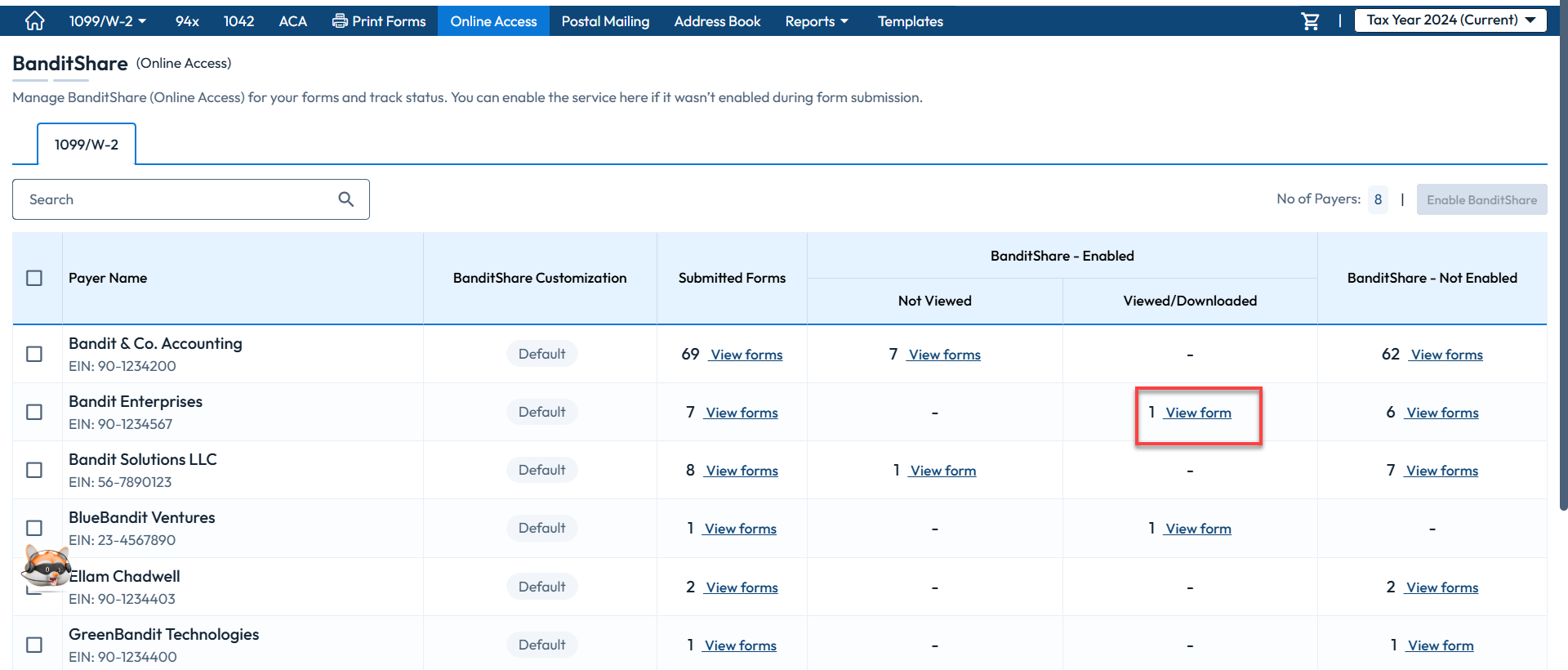
Navigate to Online Access: From your main dashboard, locate and select the ‘Online Access’ menu option. This section manages all aspects of electronic form distribution to your recipients.

-
Access Form Status: Within the Online Access section, look for a column or area typically labeled something like ‘Viewed/Downloaded Status’ or similar. You may need to click a button such as ‘View Forms’ or ‘Manage Recipients’ associated with the specific payer or batch of forms you are interested in.
-
Check Download/View Status: Once you've accessed the detailed recipient list for a specific payer, you will typically see a column labeled ‘Download Status’. This column will indicate whether each recipient has successfully viewed or downloaded their W2 or 1099 form through the Online Access portal.
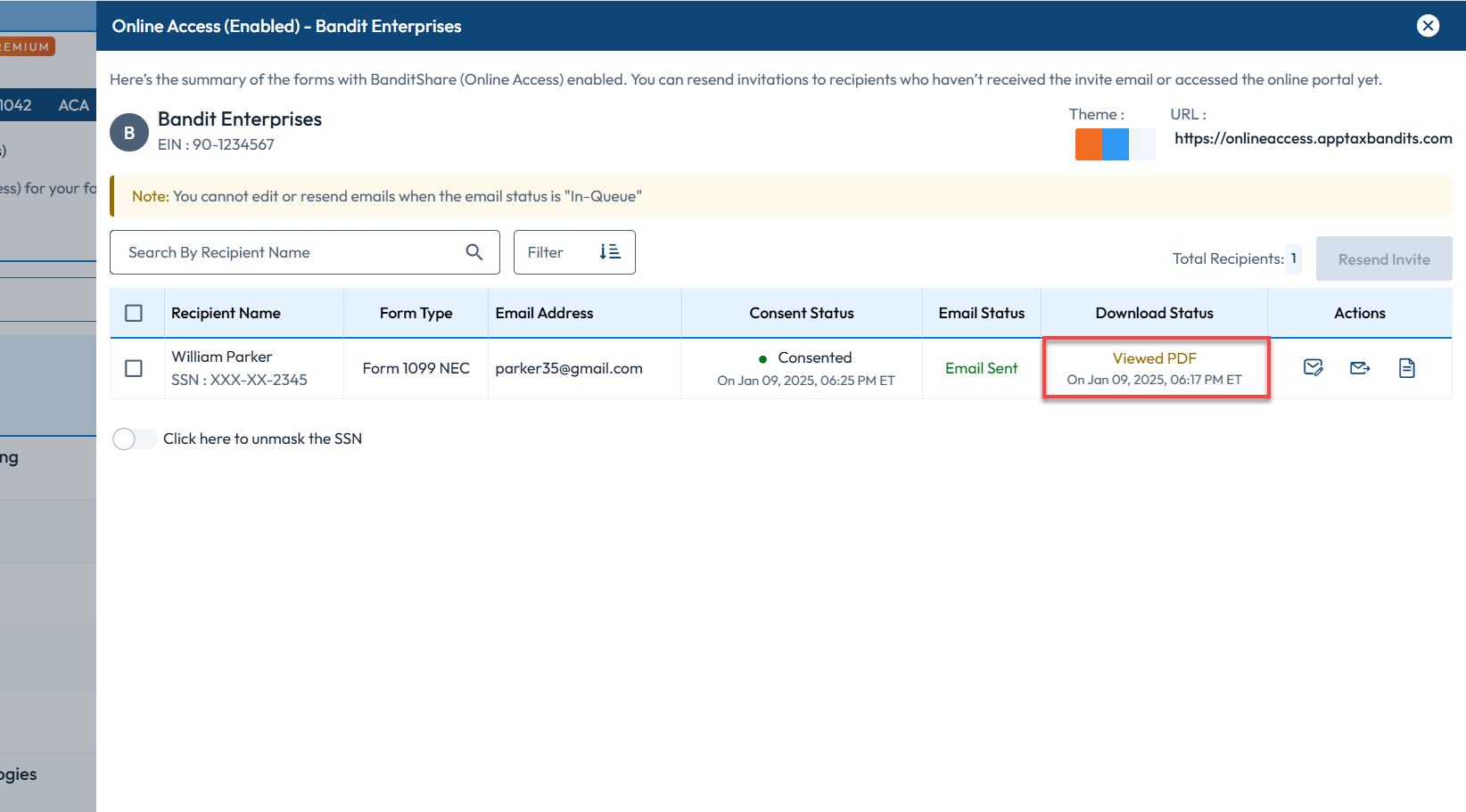
By regularly checking this status, you can stay informed about which recipients have accessed their tax forms and follow up if necessary, especially as distribution deadlines approach.
How Long Can Recipients Access W2/1099 Forms Online via TaxFile.app?
When recipients are granted access to view and download their W2 or 1099 forms through TaxFile.app's secure Online Access portal, this access is designed for their long-term convenience.
Recipients will have indefinite access to their electronically delivered tax forms. The TaxFile.app Online Access portal can be accessed by recipients at any time and from anywhere, provided they have an internet connection and their verification credentials (usually their email and the last four digits of their TIN, as established during the initial consent process).
This continuous availability ensures that recipients can retrieve their important W2 and 1099 tax documents whenever they may need them in the future, without concerns about the access expiring after a short period.
Can I Use the Same Email Address for Multiple W2/1099 Recipients Under One Business?
No, you cannot enter the same email address for multiple recipients (e.g., employees or contractors) when setting them up for Online Access to their W2 or 1099 forms within the same business in TaxFile.app.
For the security and proper functioning of the Online Access feature, each recipient must have a unique email address.
Why Are Unique Email Addresses Required for Each Recipient in TaxFile.app?
- Individual Account Security & Privacy: Unique email addresses are crucial for maintaining the security and privacy of each recipient's sensitive tax information. It ensures that only the intended recipient can access their specific W2 or 1099 form through their unique portal link and verification process.
- Accurate Delivery and Notifications: TaxFile.app uses the email address to send individual notifications, including the initial Online Access invitation, consent requests, and any updates related to their specific tax form. Using a shared email could lead to confusion or missed communications.
- Consent Tracking: The IRS requires that consent for electronic delivery of tax forms be obtained from each individual recipient. A unique email address helps TaxFile.app accurately track consent for each person.
- Portal Access and Verification: The email address often serves as part of the verification process for recipients to log in and access their forms on the secure portal.
Therefore, when preparing your W2 or 1099 forms and enabling the Online Access feature in TaxFile.app, please ensure you provide a distinct and valid email address for every individual recipient.
Re-Inviting Recipients to Online Access After Prior Consent Revocation
Question: My recipient revoked their consent last year to receive their W2 or 1099 tax form online. Can they access their forms online via TaxFile.app this current tax year?
Answer: Yes, absolutely. If a recipient revoked their consent for Online Access in a previous tax year, they can still choose to receive their W2 or 1099 forms electronically for the current tax year through TaxFile.app. The process involves sending them a new invitation for the current year's forms, which allows them to provide fresh consent.
Here’s how it generally works with TaxFile.app:
- Resend the Online Access Invitation: You will need to ensure Online Access is enabled for that recipient for the current tax year's W2 or 1099 forms. This is typically done through the 'Online Access' menu in your TaxFile.app dashboard, similar to enabling access for any new recipient. Enabling it will trigger a new invitation email.
- Recipient Receives New Invite: The recipient will receive a new email notification from TaxFile.app inviting them to access their current year's tax form securely online.
- Recipient Provides New Consent: Upon clicking the link in the email, they will be directed to the secure TaxFile.app portal. Here, they will be prompted to provide their consent to receive and view the current year's W2 or 1099 form electronically.
- Access Granted: Once they provide their consent for the current tax documents, they will be able to log in, view, and download their forms.
Important Considerations:
- Separate Consent: Consent is specific. Even if they consented in a year prior to the revocation, or if they revoked consent last year, they must provide new, affirmative consent for the current tax year's forms if they wish to access them online.
- Paper Copy Obligation: If a recipient chooses not to provide consent for online access for the current year (or if they revoke it again), you are still required by IRS regulations to provide them with a paper copy of their W2 or 1099 form by the deadline.
- Verify Email Address: Before resending an invitation or enabling Online Access, always ensure the recipient’s email address on file in TaxFile.app is current and correct. If it's incorrect, you can typically edit the email address within the recipient's details in TaxFile.app and then (re)initiate the Online Access invitation.