If you have reported incorrect information in the original 1099/1098, you can file 1099 Correction forms to correct them. We support corrections only if you have filed the original 1099/1098 with TaxFileApp. Please note that you can only correct the 1099/1098 form AFTER the IRS accepts it.
What You Can Correct
- Recipient Details and Amounts
What You Can NOT Correct
- Employer's TIN
- employer's Address
- Employment Code
- Tax Year
To correct the employer's TIN, Address, Employment Code, and Tax Year, you need to void the form using the steps below and then file again.
Correction/Void Steps
- Sign in to TaxFileApp, click Start New >> Form >> Form 1099/1098-Correction.
- Click on ‘Select Payer from Address Book’ for the payer for which you want to file corrections.
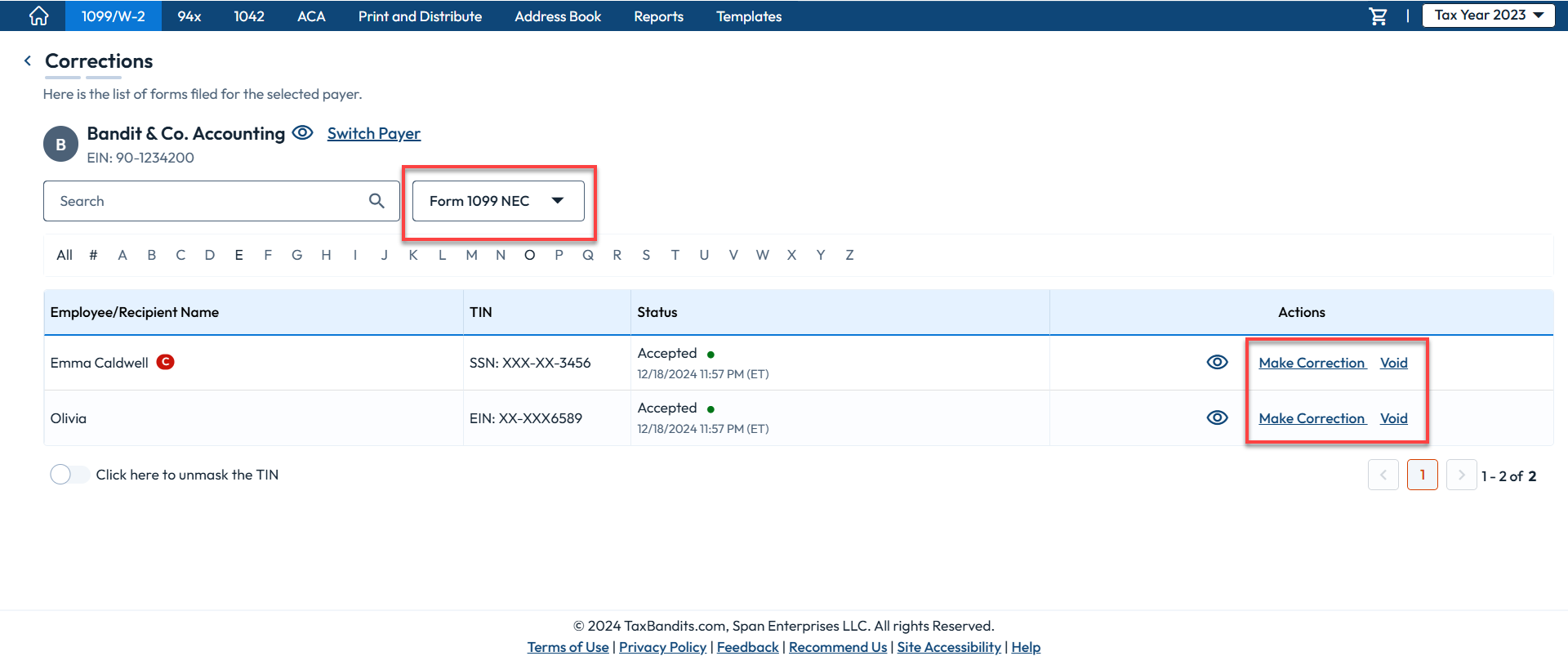
- Choose the form from the dropdown, and the list of accepted forms will be displayed. Under the ‘Actions’ column, click on ‘Make Correction’ next to the employee. If you want to void the form, you have the option to select ‘Void.’
- On the correction form, check the ‘Correct recipient details’ box to edit the recipient's information.
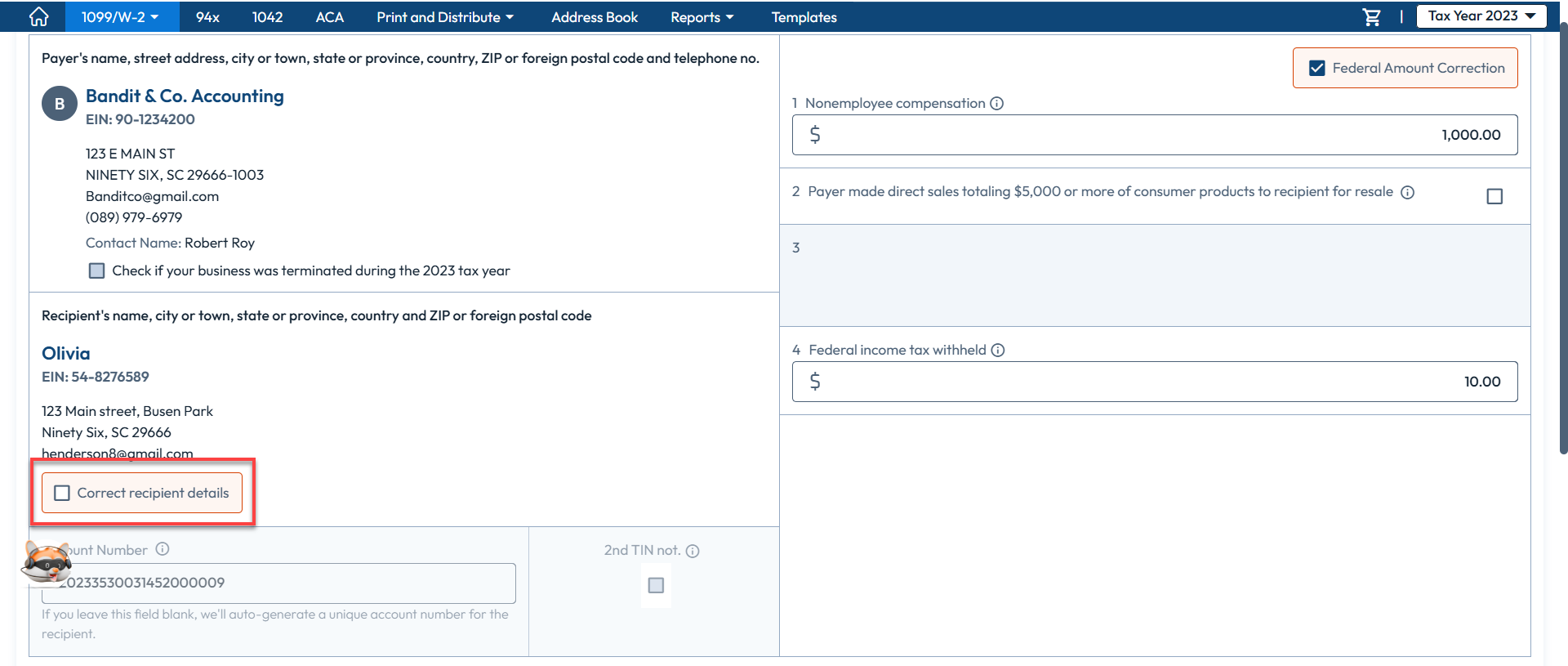
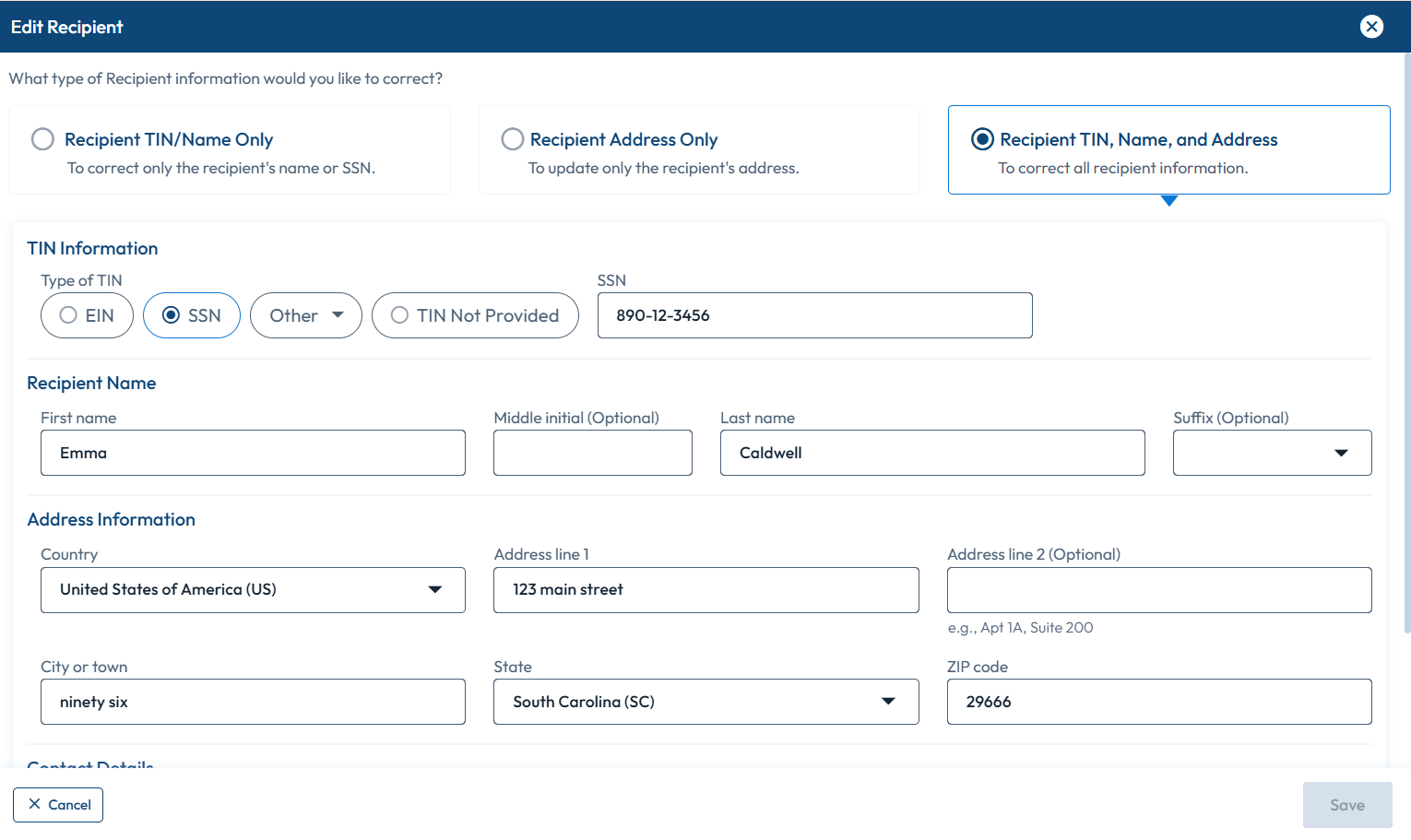
Once you select the checkbox, you’ll see three options for the type of recipient information you want to correct.
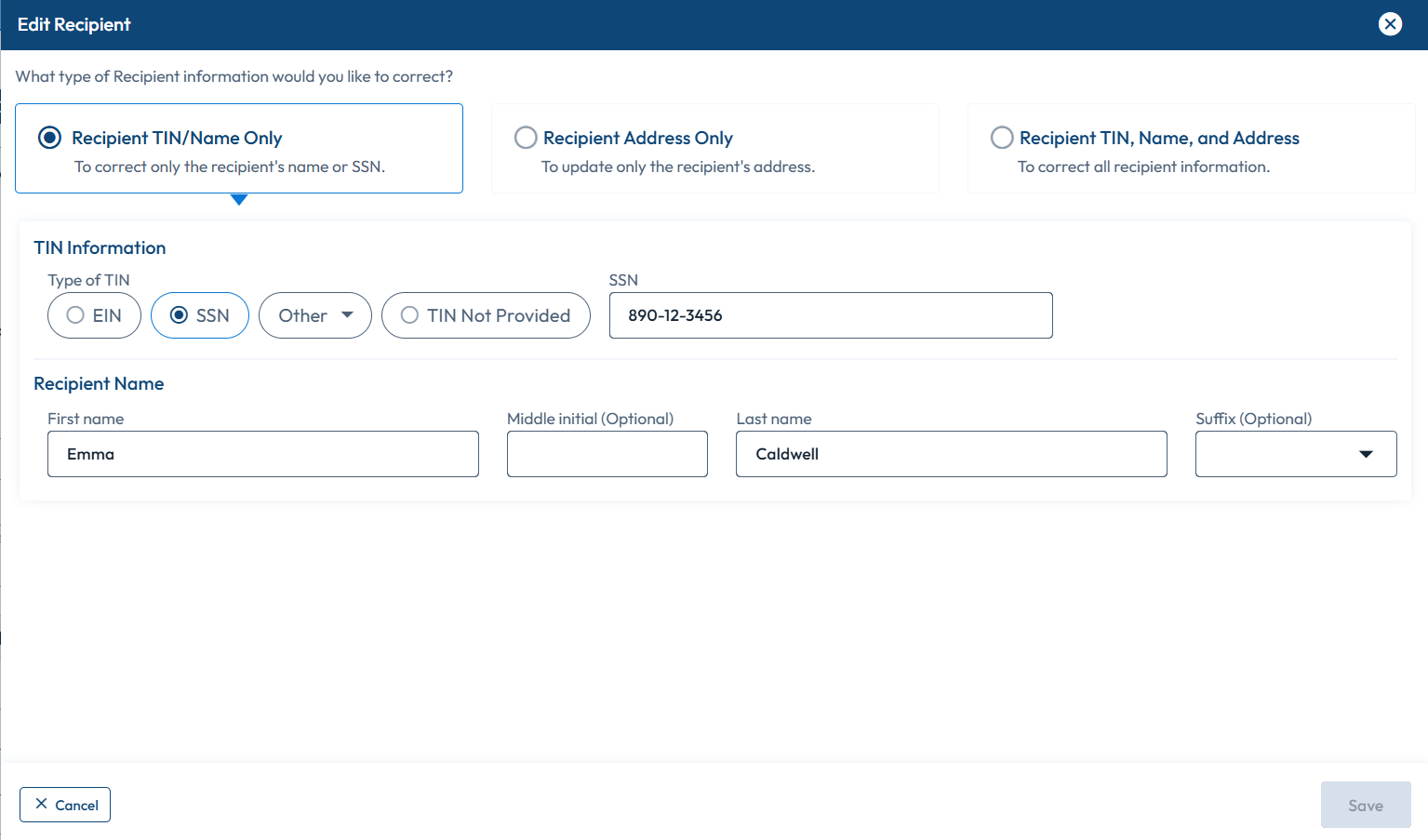
-
Recipient TIN/Name Only - You can correct the recipient’s name or SSN only.
-
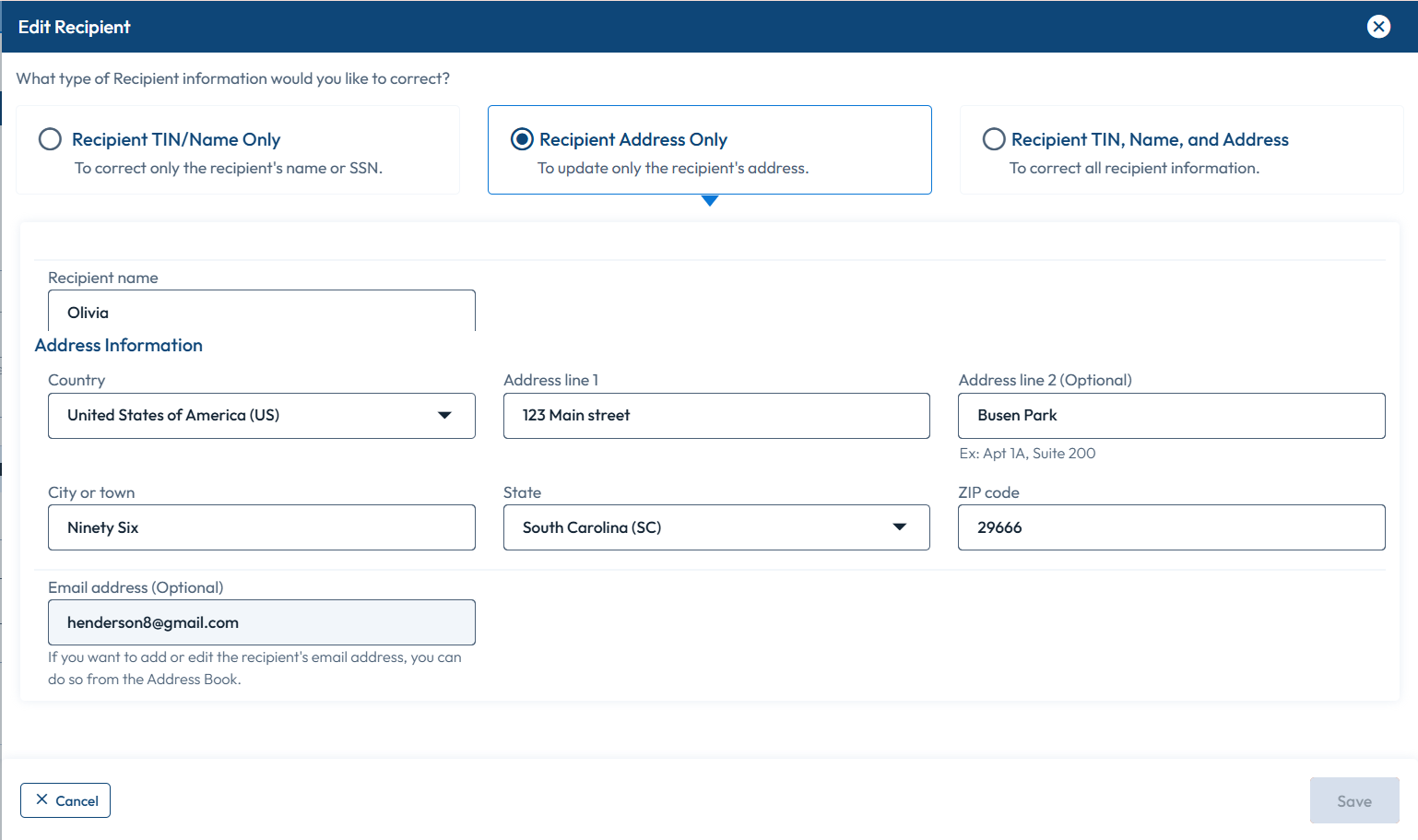
Recipient Address Only - You can correct the recipient’s address only.
-
Recipient TIN, Name, and Address - You can correct all recipient information.
- Select the ‘Federal Amount Correction’ checkbox to correct the federal amount and update the necessary details.
- After making all the corrections, proceed to the next step.
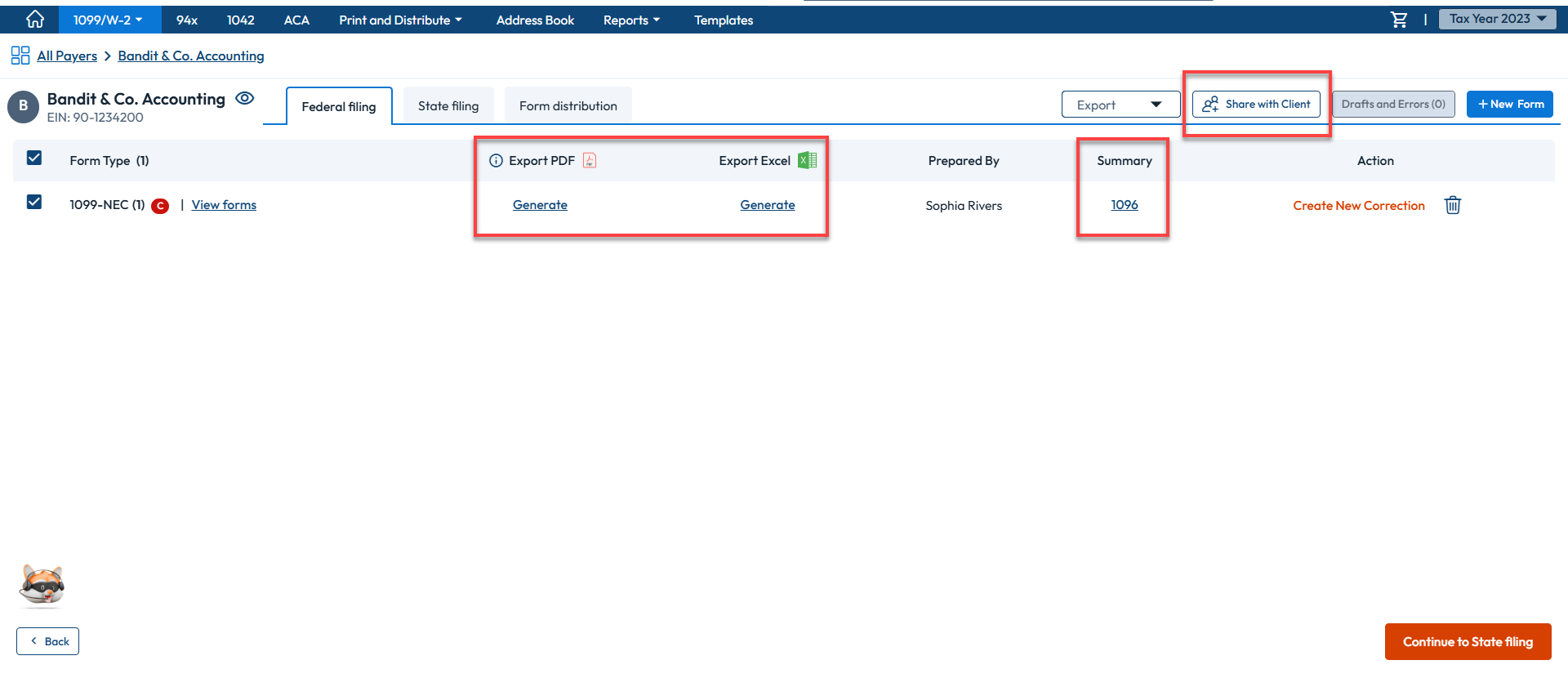
- On the federal filing page, you can review your forms, download them in PDF format, export them in Excel, and download the summary form.
- You can review the summary of forms that are ready for federal filing. You have the option to export the draft versions of the form as either PDF or CSV files. If errors are found, make the necessary changes in the CSV file and upload it back to our system using the bulk import option.
- Use the 'Share with Client' option to share the forms with your clients via BanditConnect for their review.
- You can find your state filing requirements on this page based on the information you reported. You can choose to select or de-select states you want to file with. Ensure you promptly follow the instructions to complete any additional state filing requirements.
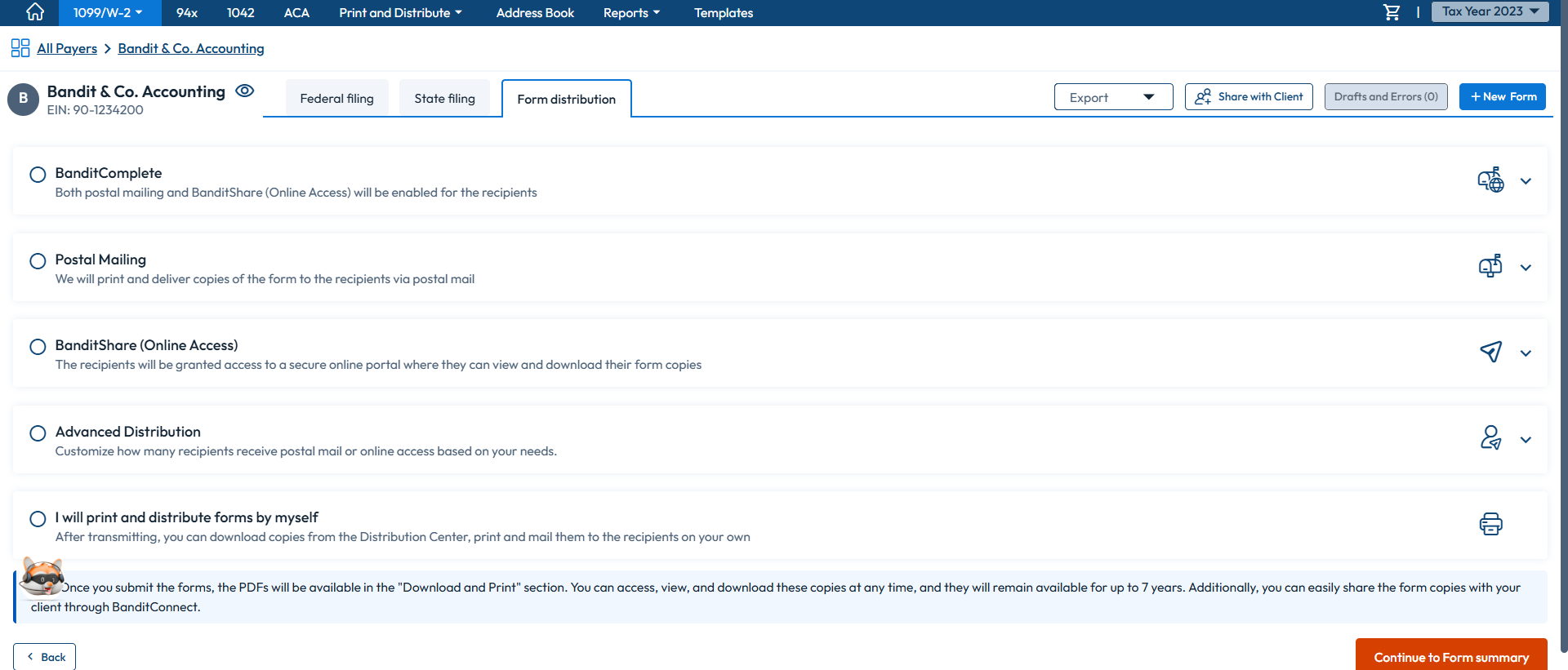
- Proceed to 'Form Distribution' select the type of form you want to be distributed, and continue.
- Tax File App provides you with four options to send recipient copies:
- BanditComplete - Both postal mailing and BanditShare (Online Access) will be enabled for the recipients.
- Postal Mailing - We will print and deliver copies of the form to the recipients via postal mail.
- BanditShare (Online Access) - The recipients will be granted access to a secure online portal to view and download their form copies.
- Advanced Distribution - Customize how many recipients receive postal mail or online access based on your needs.
- If you prefer to manage the form distribution on your own, choose 'I will print and distribute myself' and proceed further.
- Click 'Continue to Form Summary' and review the form. You’ll have the following options here.
-
Validations: You can opt for add-on services such as TIN Matching and USPS Address Validation.
- TIN Matching: Validate your vendor/payee TINs against IRS data to ensure accurate 1099 filings and prevent potential penalties.
- USPS Address Validation: Verify all addresses entered on your forms through USPS Address Validation to confirm accuracy.
-
Schedule Filing: You can either transmit the forms immediately or schedule them for a later date. If you schedule your forms, you’ll have the option to edit the information until the scheduled date.
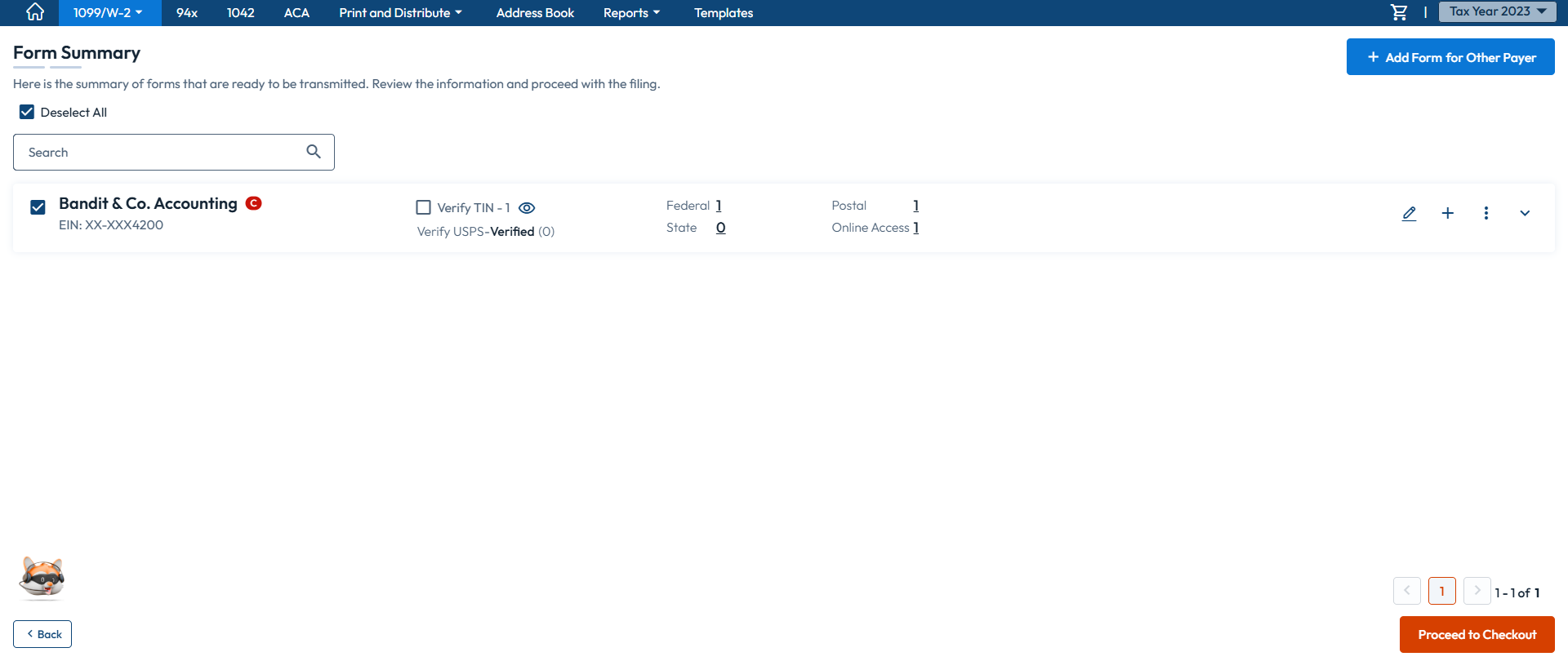
- Proceed to payment and transmit the correction form. After transmission, track the status of your return in the 1099/W-2 dashboard.
-
Validations: You can opt for add-on services such as TIN Matching and USPS Address Validation.